SLA Installer Fails on 64-Bit Systems When Using BOBJ 4.2 (32-Bit)
Symptoms
Issue
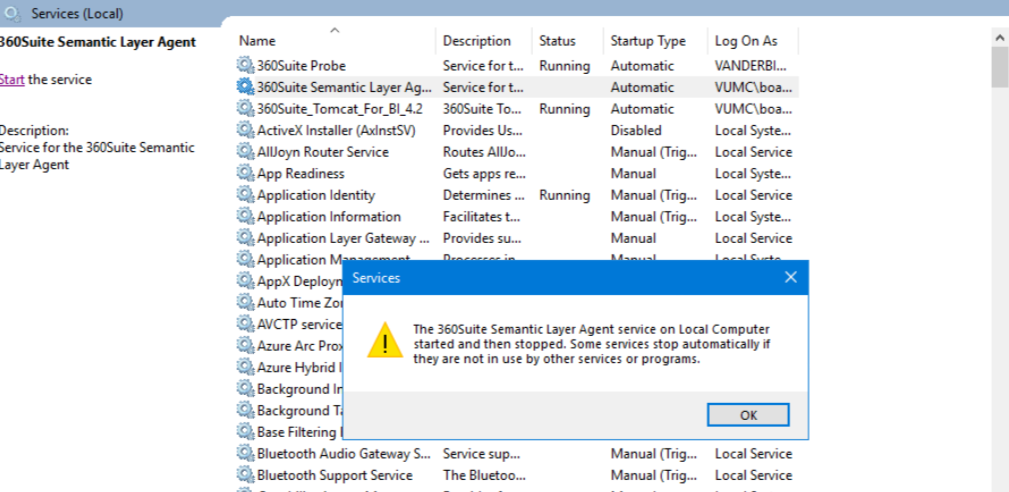
When installing the SLA (Semantic Layer Agent) on a 64-bit Windows system that has SAP BusinessObjects 4.2 (32-bit) installed, the SLA service may fail to start. This issue is due to an architecture mismatch: the SLA installer expects a 64-bit BI platform, but the system is running the 32-bit version of BOBJ.
This article explains how to resolve the issue by adjusting the SLA configuration manually.
Note: This issue is resolved in SLA version 2025.2 and later.
 Environment
-
Product: 360Suite – SLA - Versions before 2025.2
-
Operating System: Windows 64-bit
-
SAP BOBJ Version: 4.2 (32-bit)
Cause
After installing SLA on a 64-bit Windows machine with BOBJ 4.2 (32-bit), the SLA service fails to start.
The error is typically related to an architecture mismatch, where the SLA is trying to launch in 64-bit mode, which is not compatible with the 32-bit BOBJ installation.
Resolution
Follow the steps below to manually adjust the SLA configuration to run in 32-bit mode.
Step 1: Check SLA Service Startup Parameters (If Applicable)
-
Open the SLA Service Properties window.
-
Go to the Startup tab.
If present, remove any command-line argument that forces the SLA to run in 64-bit mode (such as a
win64flag).This argument forces the SLA to launch in 64-bit mode and should be removed for 32-bit BOBJ environments.
If no such argument is found, proceed to Step 2.
Step 2: Modify the Launcher.jar File
Navigate to the SLA installation folder:
-
Make a backup of the existing
Launcher.jarfile. -
Open
Launcher.jarusing an archive tool like 7-Zip or WinRAR. Locate the file named
architecture.propertiesinside the archive.-
If it doesn’t exist, create a new file with that name inside the archive.
-
Edit
architecture.propertiesand ensure it contains:If the file originally contained
architecture=win64_x64, change it towin32_x86.Save the modified file and update it in the archive.
Step 3: Restart the SLA Service
-
Restart the 360_Semantic_Layer_Agent service.
-
Verify that the service starts successfully and that it is compatible with your 32-bit BOBJ environment.